Site blog
1.Your administrator should assign you the paper questions which need to be reviewed in Paper Management ->Paper List, select the specific paper and click the right most column "Questions" to open the question list page:

2.In the question list page, choose the specific question you want to review:
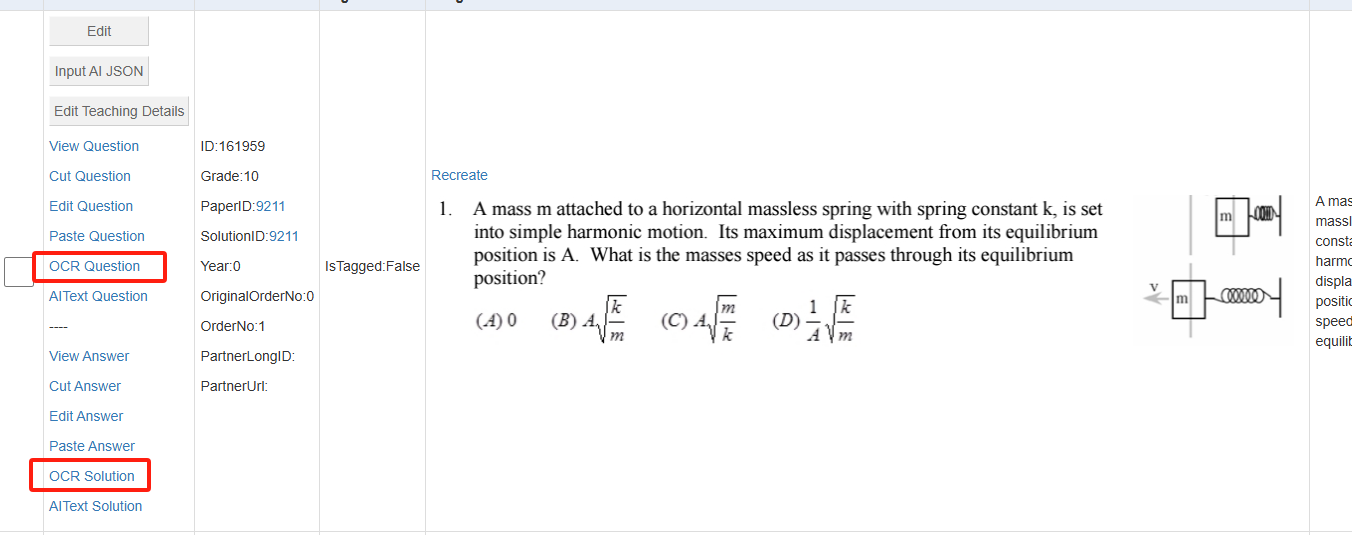
For each question, we have question text and solution text, the correspondent editing button is "OCR Question" and "OCR Solution", the functionality is pretty much the same while editing target is either question text or solution text;
4.After you click "OCR Question" link, you will be redirected to the question text editing page:
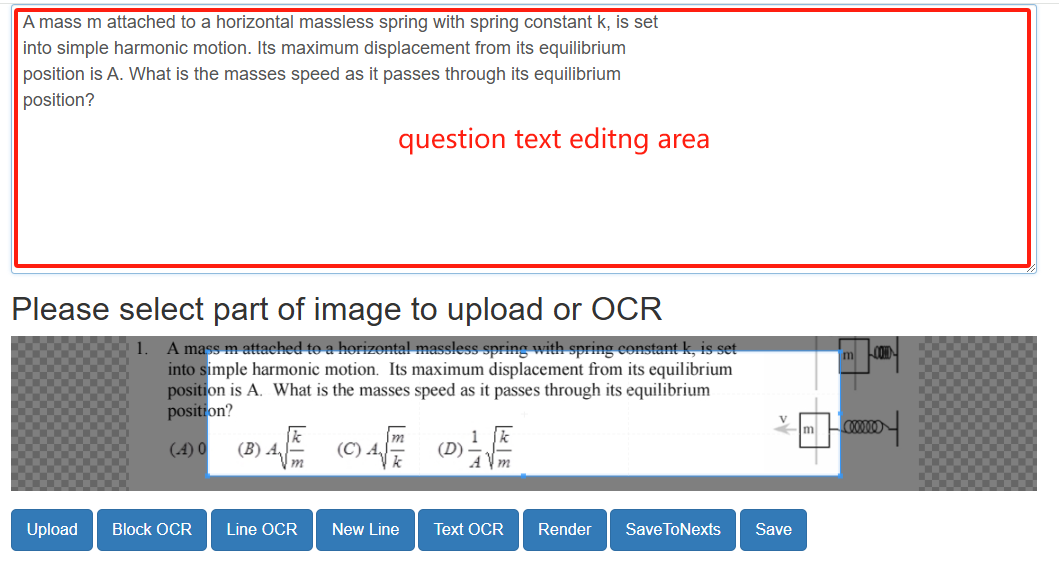
this is the "What You See Is What You Are Editing" or WYSIWYAE editor.
All the question text you finish will be displayed in the above question text area, the render engine will display the final effect below the buttons.
Here are the functionality for each button:
Upload:Firstly make sure the mouse cursor is in the specific position where you want to insert the uploaded image, select part of the image in the image area, then click "Upload" button, the selected image part will be uploaded immediately and rendered below the buttons;
Block OCR:Firstly make sure the mouse cursor is in the specific position where you want to insert the OCRed image LATEX, select part of the image in the image area, then click "Block OCR" button, the selected image part will be OCRed immediately and rendered below the buttons. The generated OCR latex will be display as a block not occupying one line;
Line OCR:Firstly make sure the mouse cursor is in the specific position where you want to insert the OCRed image LATEX, select part of the image in the image area, then click "Line OCR" button, the selected image part will be OCRed immediately and rendered below the buttons. The generated OCR latex will be display as a line;
New Line:this button will insert a <br> between the question text and question options, <br> means starting a new line, which will display the options in a new line to make the question displaying elegant ;
Text OCR:Firstly make sure the mouse cursor is in the specific position where you want to insert the OCRed image text not LATEX, select part of the image in the image area, then click "Text OCR" button, the selected image part will be OCRed into text immediately and rendered below the buttons.
Render:Click this button if you want to see the real displaying effect after the LATEX is rendered;
AddBR:Click this button to add a new line HTML tag <br> to each line in the editing text area;
SaveToNexts:Click this button to save your selected text into next question text as prefix in this paper, start a new line with a specific number if you want to save your selected text into a few next questions. For example, select the following text :
"You can use calculator for this question:
5"
Will save the text "You can use calculator for this question:" into next 5 question's question text as prefix.
Save:Save the editing work you finished into database, You MUST click this button if you did something otherwise all your work will be lost;
Here are the steps to share the notes to students in the class.
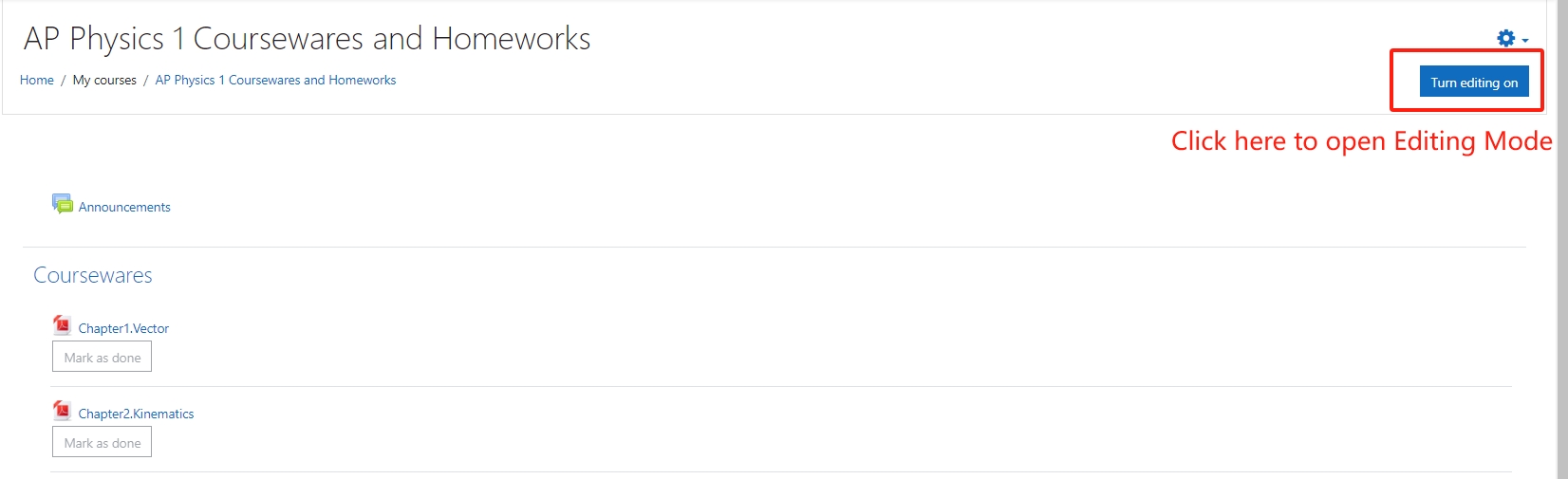
1.Open the course, switch into Editing Mode:
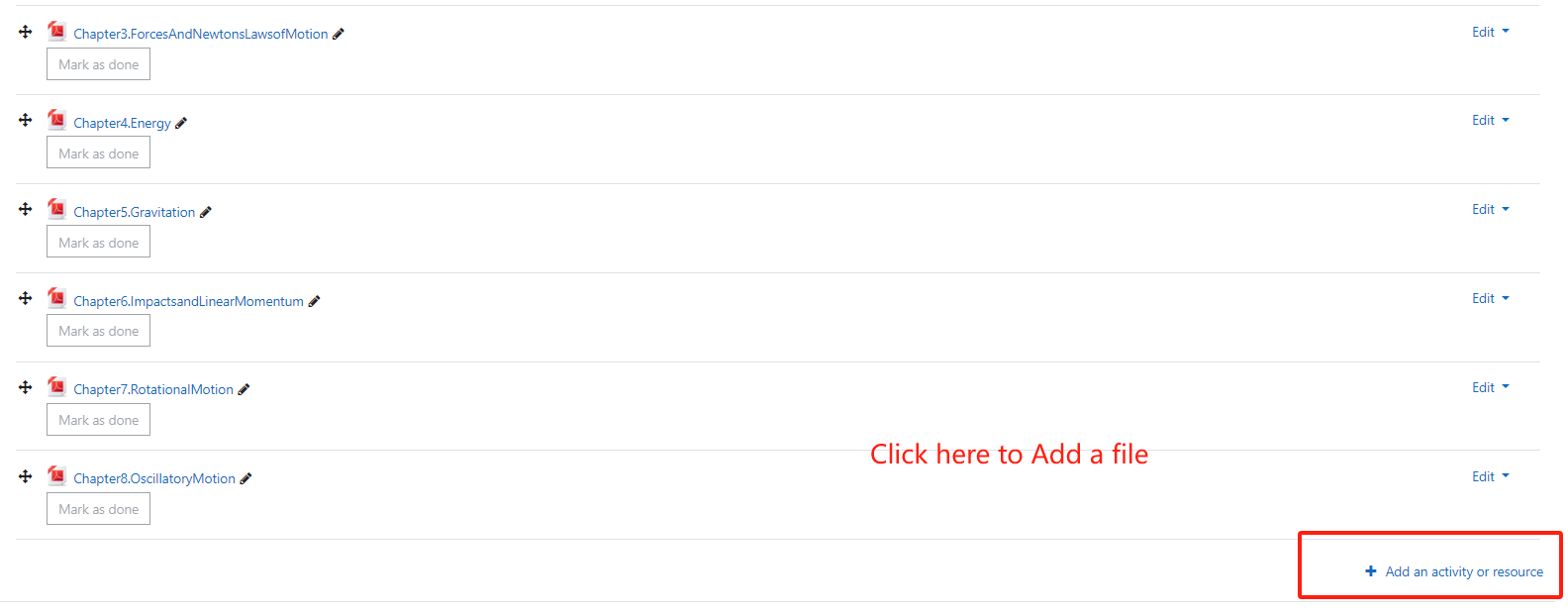
2.Click "Add an activity or resource" at the bottom:
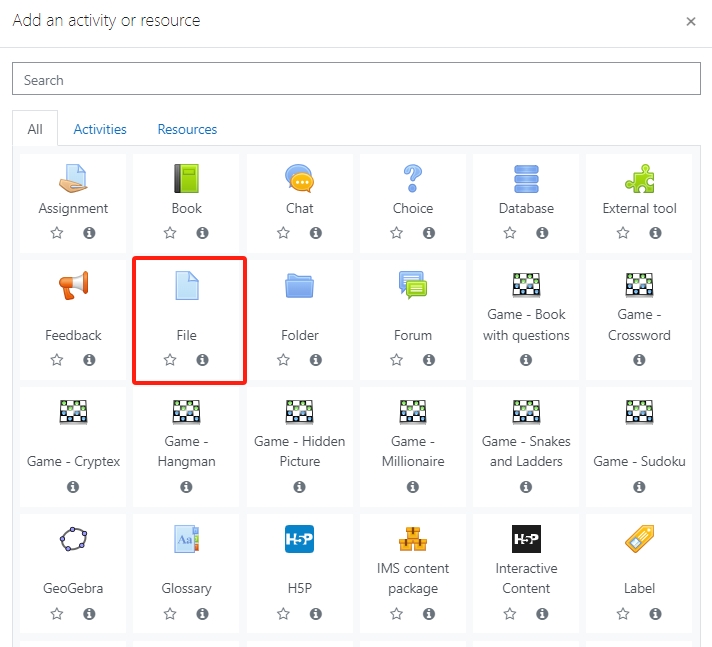
3.Choose the File type to upload:
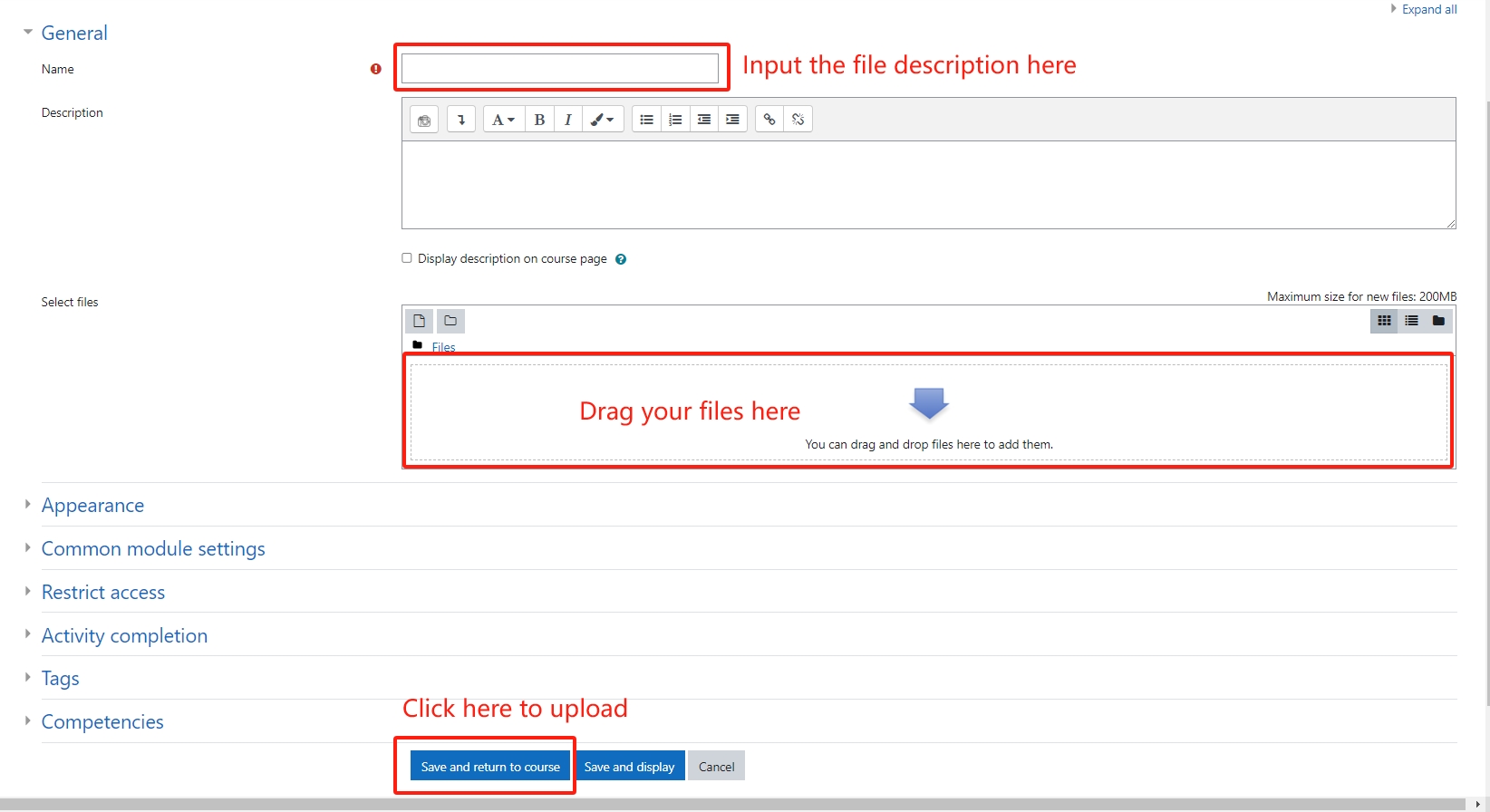
4.Input the file title and description then Drag your uploading file into the file box:
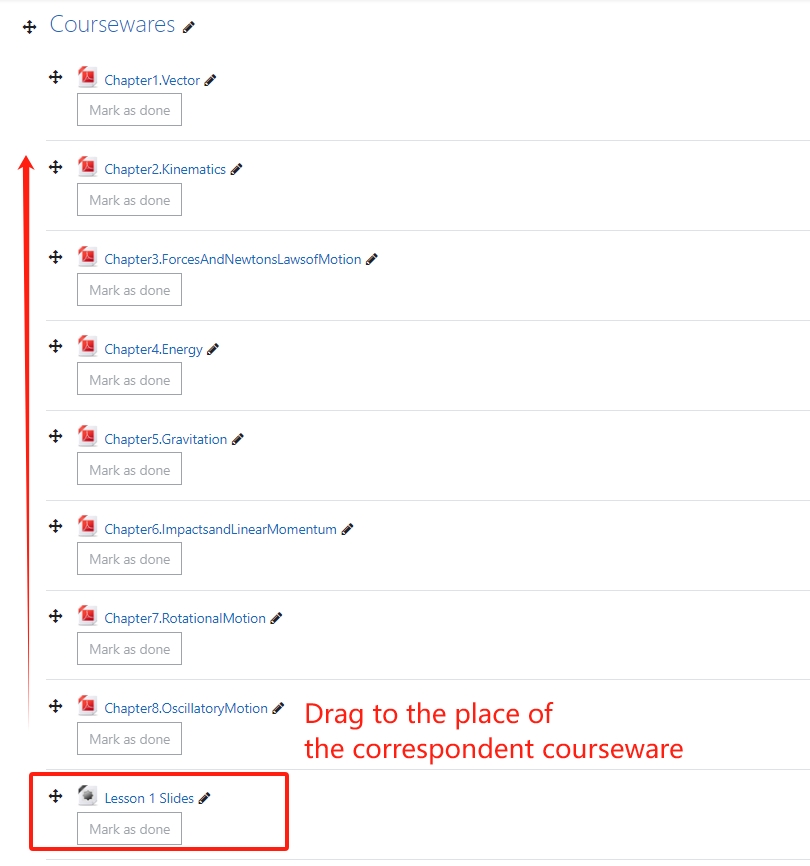
5.Drag the notes below the correspondent courseware to make students easier to review:
6.Switch off the Editing mode.
Thanks for uploading your notes to let students learn better!
答复:网课偶尔缺课,课后看视频完成作业,课时正常扣除;
面授课课程偶尔缺课,如果有一半(含)以上同学缺课,和老师协商时间后,如果都达成一致,可以顺延一次上课;
面授课个别同学缺课,老师为缺课同学录制保存视频, 缺课同学课后看视频完成作业,课时正常扣除;
为保证老师授课时间,特殊情况每个月最多可以有一次请病假缺课机会。
请假需要在课程开始时间24小时之前提出。没有请假的同学因为忘记等原因缺课,课时会正常扣除。 如果需要补课,可以额外付费安排其他老师一对一补课。
2.可以试课吗?
答复:可以。报课后第一次课算试课,第一次课后不满意在课后24小时内提出,可以退扣除第一次课时费后的其他全部费用。由于学校老师根据学生数量提取工资,试课不是免费的,希望大家理解。
小班课正式上课后如果需要额外辅导可以和老师再增加一对一的辅导时间,学校不安排退课。
3.小班课程报课时需要一次支付完成吗?
答复:为了保证教学质量,我们的课程均为精品小班课,为保证孩子学习课程知识结构的完整性,同时也为了让老师和其他同学公平避免中途班级关闭,课程报名是需要一次支付完成的。
如果特殊情况希望分开支付,需要通过如下链接完成银行授权,根据账期自动划款转账:
https://app.rotessa.com/authorize/iHiq6laDWFJFYe43
填完以后,系统会给您发送一封邮件,并往您的银行账号里面打入小额转账,按照提示打开邮件里面的链接输入一下接收到数字就完成了。
4.个性化数学和一对一同学可以月付吗?
可以。月付同学需要通过如下链接完成银行授权,根据账期每月自动划款转账:
https://app.rotessa.com/authorize/iHiq6laDWFJFYe43
因为我们的账务都需要进入系统管理,EMT入账工作量比较大,学校要求月付同学都需要银行授权自动转账,如果停止学习提前通知我们可以立即终止自动转账。
Email Transfer需要至少一个季度一付,希望大家能够理解。
Email Transfer的接收邮箱是:
高贵林面授课同学请转到:rootmaths.coquitlam@gmail.com
其他同学请转到:rootofmath2018@gmail.com
Email Transfer的接收公司名称是:Rootofmath Education Limited
5.个性化数学和一对一季度付款的同学偶尔缺课可以顺延吗?
为保证老师授课时间,特殊情况每个月最多可以有一次请病假缺课机会。
请假需要在课程开始时间24小时之前提出。没有请假的同学因为忘记等原因缺课,课时会正常扣除。 上一季度请假课时自动顺延到下一季度,下一季度缴费时不用缴纳顺延的课时学费。
注:如果您使用微信支付或支付宝,因支付二维码只有1分钟的时效,请您在电脑上登录网站,到支付二维码页面用手机扫码完成支付。
请不要只用手机一个设备进行微信支付或支付宝支付操作,谢谢!
1.请在电脑上用孩子的账号登录Rootmaths.com;
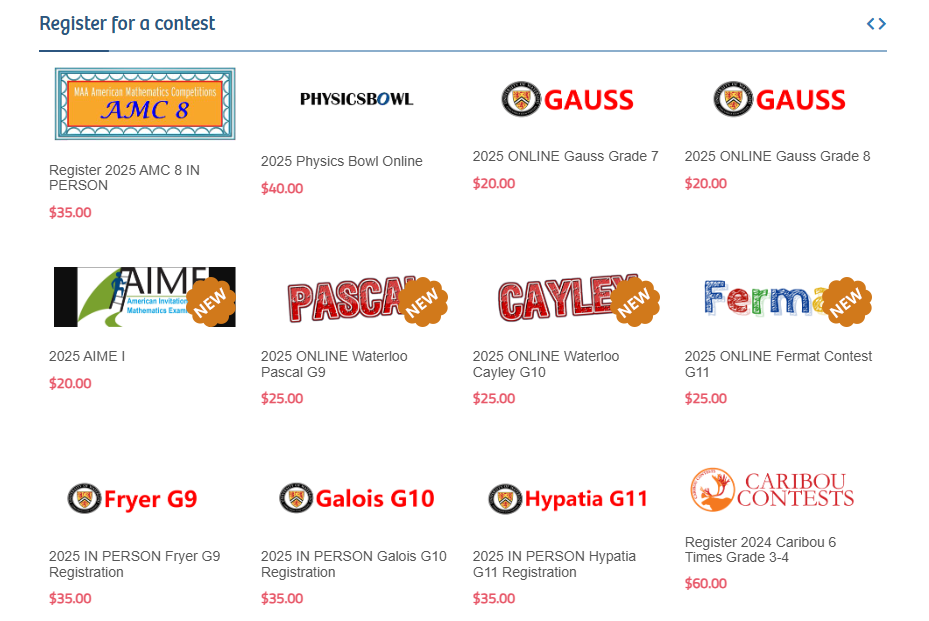
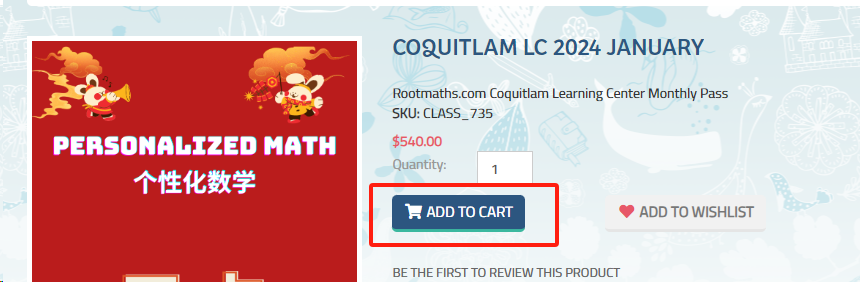
2.到网站首页或产品列表页面找到对应考试或产品,打开缴费报名链接,点击"ADD TO CART",系统会提示添加到购物车成功了:
3.点击网站右上角的"Shopping cart":

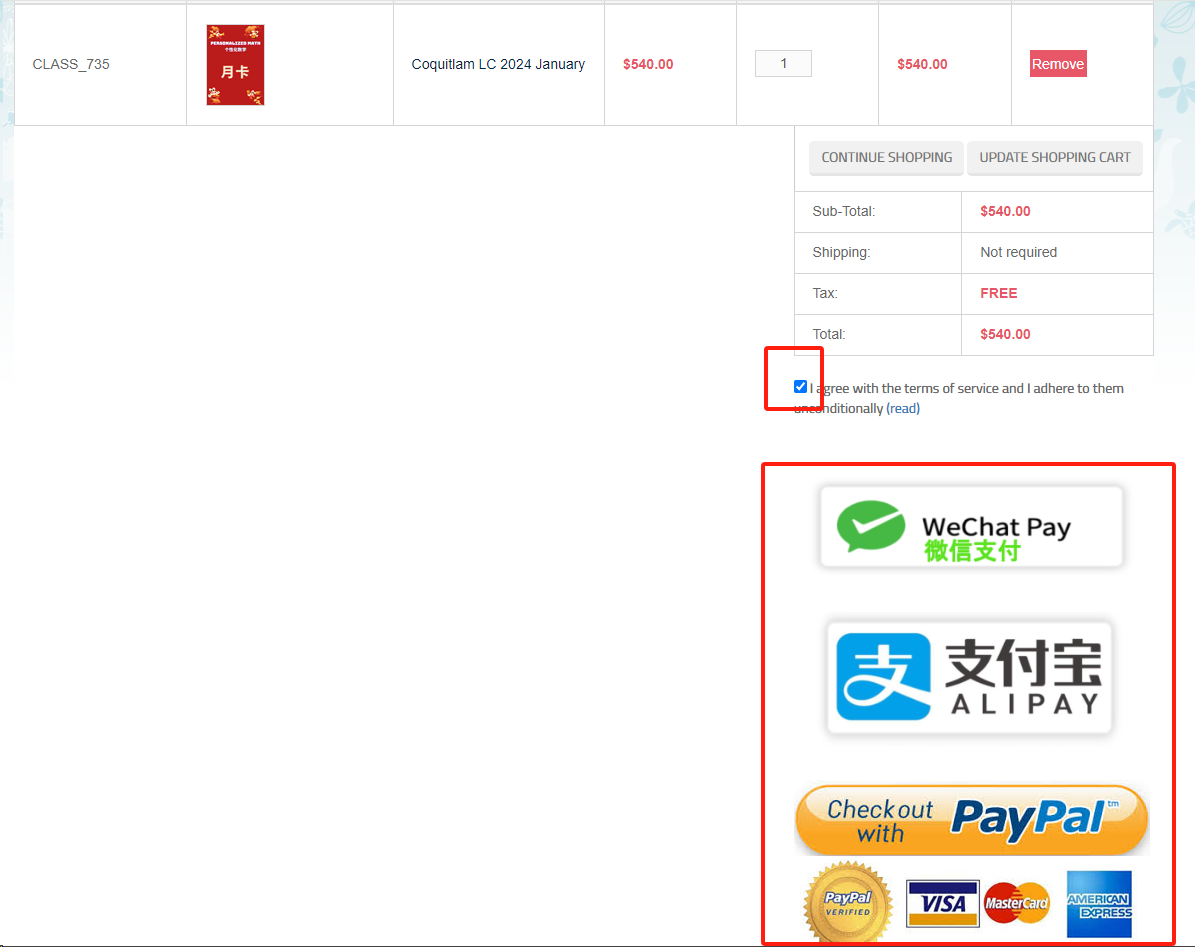
4.在接下来的页面中勾选“同意条款”后点击你希望的支付方式的按钮:“微信支付”、“支付宝支付”或信用卡支付并走完全部流程即可。
如果您选择用信用卡支付,系统会跳转到Paypal支付网关,在这里您无需注册或登录Paypal账号,选择“”走完流程即可。
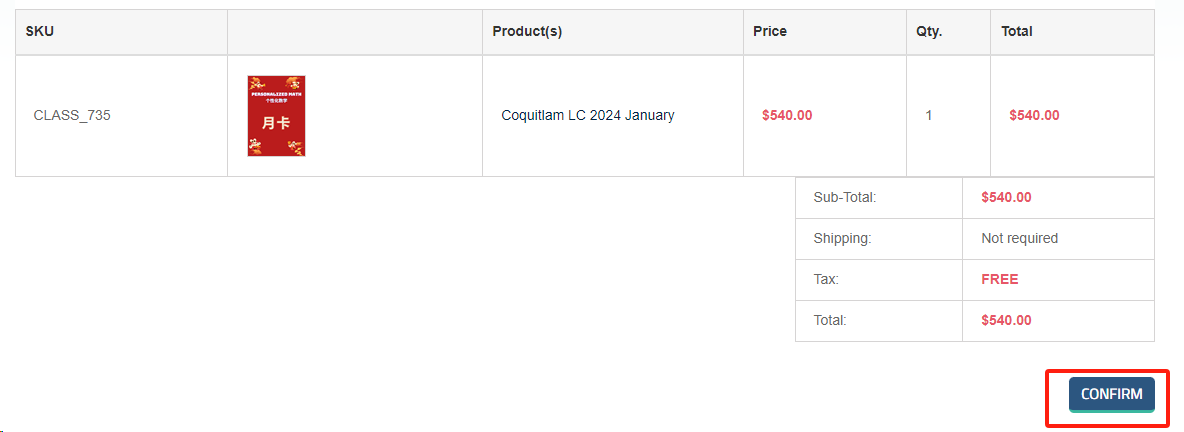
5.在接下来的页面中点击"CONFIRM"确认缴费:
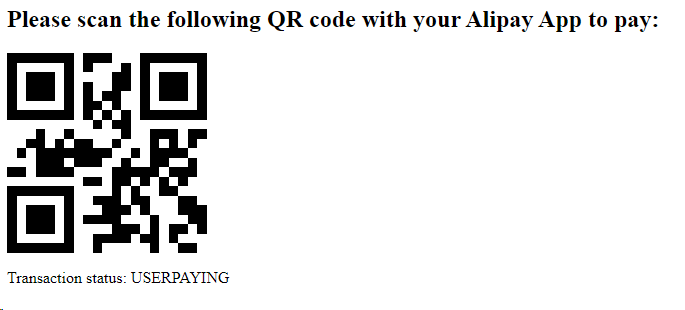
6.如果您选择了微信支付和支付宝,系统会打开一个二维码,请打开您手机上面的微信APP或者支付宝APP扫码完成支付:

如果您看到的是类似下面的二维码,下面这个是无效二维码,请CTRL+F5刷新一下页面或者重新操作一次后再到这个页面支付。
感谢您使用Rootmaths.com的网络支付功能!
1.Click and enter the classroom web page: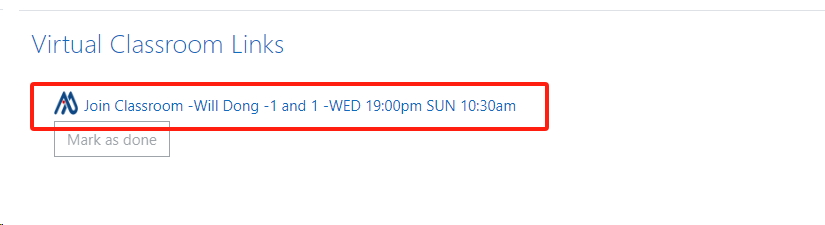
2.Click "Edit Setttings" on the top right corner:
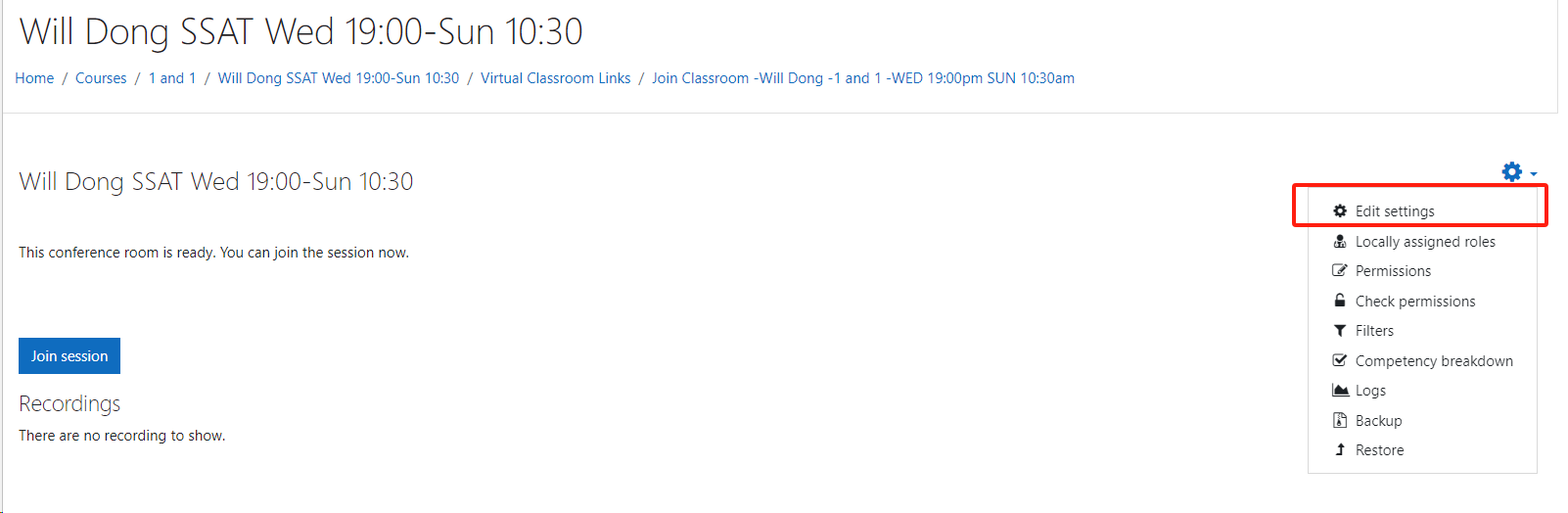
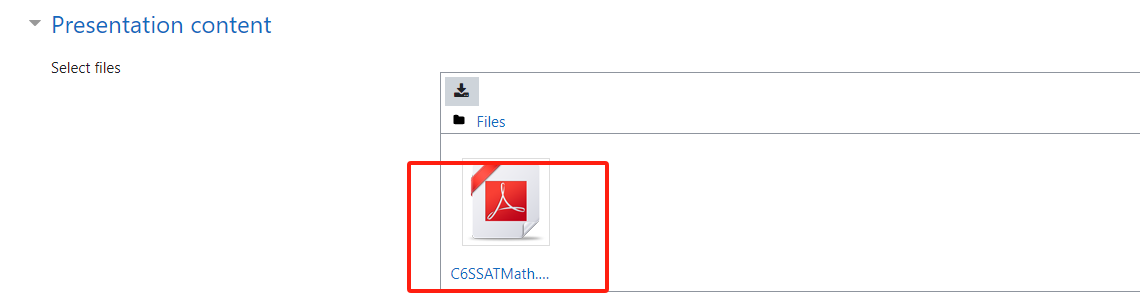
3.Click the area block in the "Presentation content" section on this page:

4.On the pop up dialog, Click "System" Link:
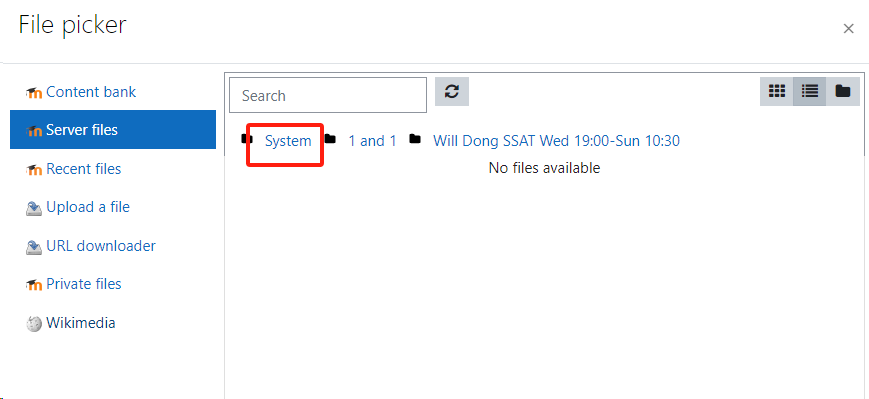
5.Choose the correct PDF file for the current lesson:
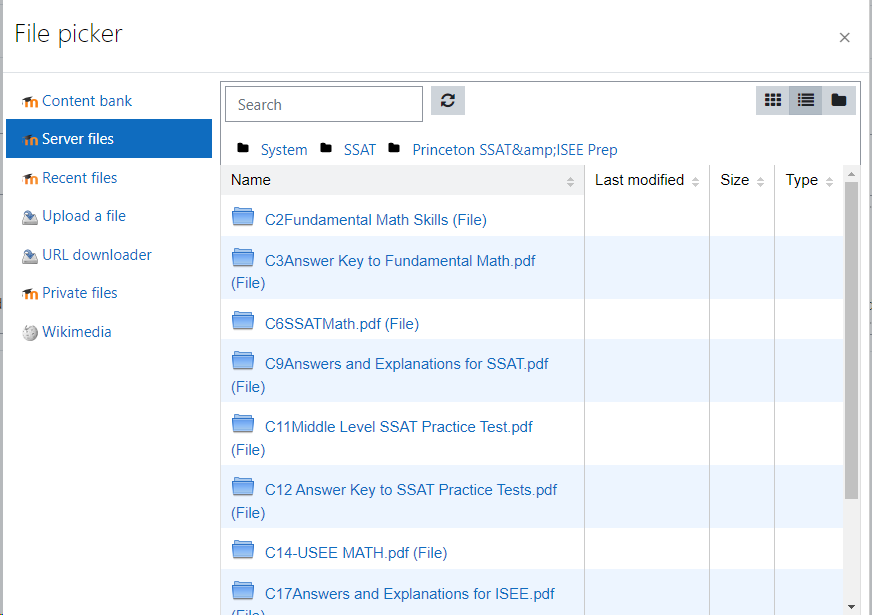
6.REMEMBER to choose "Link to the file" then click button "Select this file",please do NOT choose "Make a copy of the file":

7.Click "Save and return to course" to finish your configuration.
8.Now click "Join Session" to start the classroom ,the configed presentation file will be loaded up automatically, you can scroll to next pages the same way as other software:
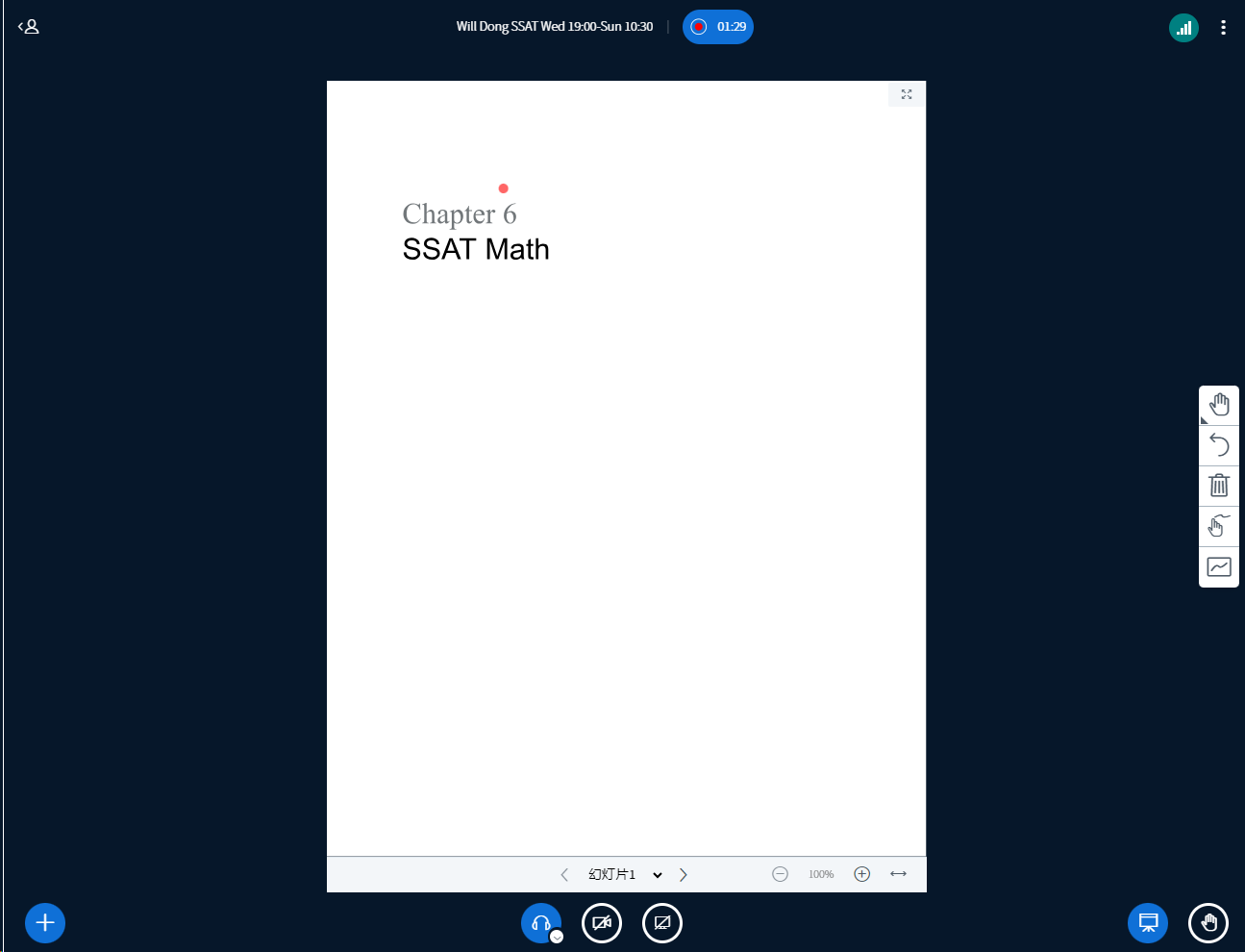
9.Now you can use the right drawing tools to draw anything you want on the slides in the same way you did in Zoom.

10.If you want to change the presentation file, you can click the file then click "Delete" to remove it first, repeat the previous steps to set the new presentation file.

Thank you to choose Rootmaths Classroom to make tutoring work much easier!
1.General question answer hint:
Multiplication symbol required between number and letter:
(Please write your answer in algebra, ^ standards for power ,* means multiplication, number and letter must be separator by operator, i.e. "t^3+12t" MUST be input as "t^3+12*t","1/(100x)" MUST be input as "1/(100*x)")
Square root:
(Please write your answer in algebra, "sqrt(101)" stands for \[\sqrt{101}\])
n-th root: "root(2,5)" stands for \[\sqrt[5]{2}\] or you can just input 2^(1/5).
2.Multiple answers for one question:
If you have 3 answers to the question, such as 12,23,65, please input "{12,23,65}".
The question hint:
(Please write your answer in set symbol, {a,b,c} means this question has three answers:a,b,c)
3.Recurring decimal numbers:
If your answer is "\[0.0\overline{234}\]", the question hint:
(Please write your answer as "0.0\overline{234}",quotation marks required)
4."infty" stands for \[\infty\]:
If your answer is "\[\infty\]", just input "infty" for your answer
5."sum" stands for \[\sum \]:
If your answer is "\[\sum_{i=0}^{2n} x^{(2*n-i)} \times y^i\]", just input "sum(x^(2*n-i)*y^i,i,0,2*n)" for your answer
6.Write \[\pm 5i\] with set symbol:
If your answer is "\[\pm 5i\]", just input "{5*i,-5*i}" for your answer
7.Write "pi" for \[\pi \]:
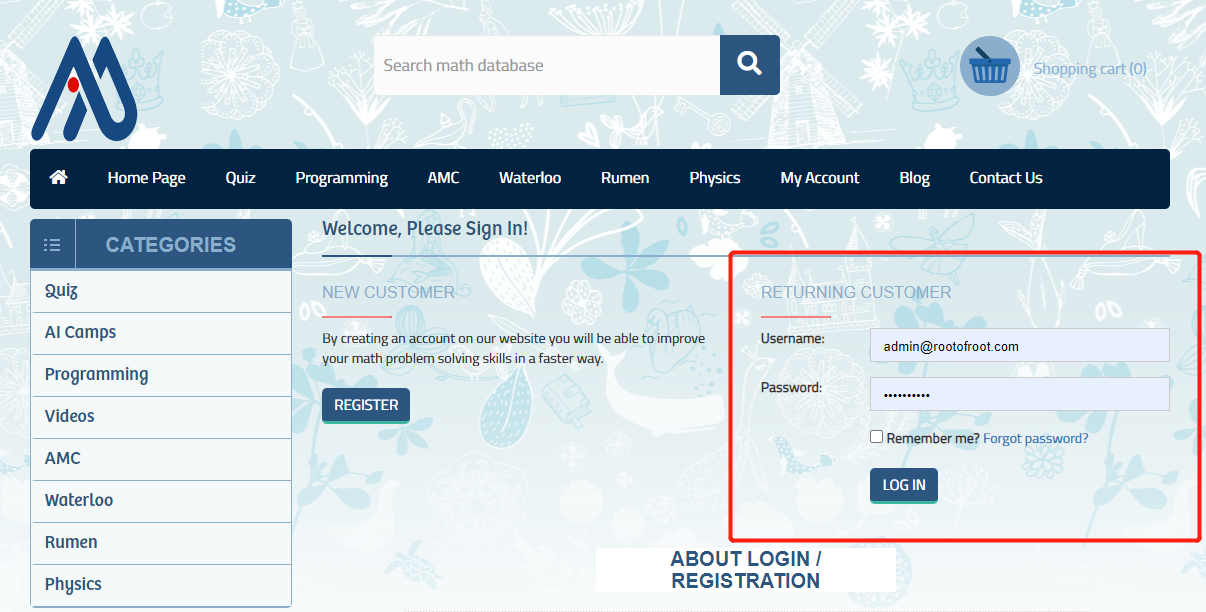
1.Login Rootmaths.com: Please input your email and password then click "LOG IN" to login into our website:
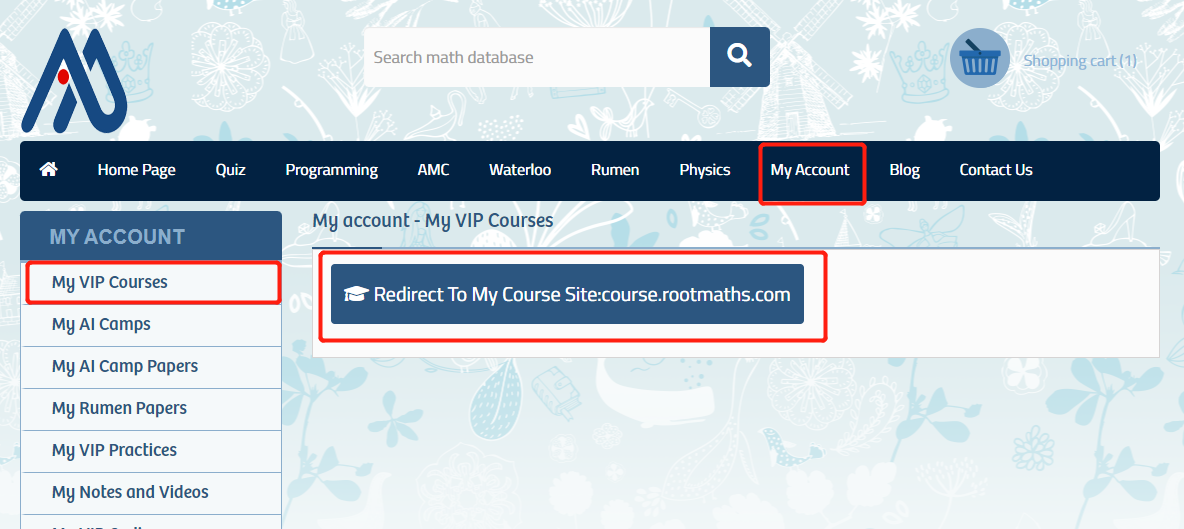
2.Then select My Account->My VIP Courses, click "Redirect To My Course Site:course.rootmaths.com" button to be redirected onto course.rootmaths.com in one click:
You can also save your time by opening the course website: course.rootmaths.com/login/index.php directly and then input your email and password:
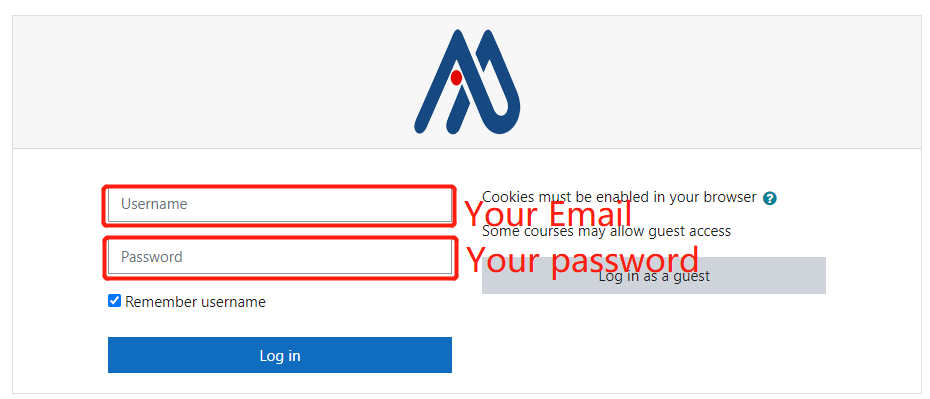
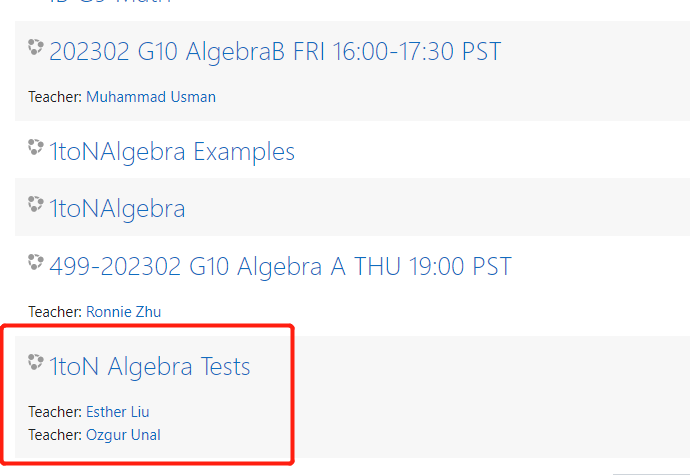
Here you will see all courses you enrolled, please click the specific course name to enter the management page.
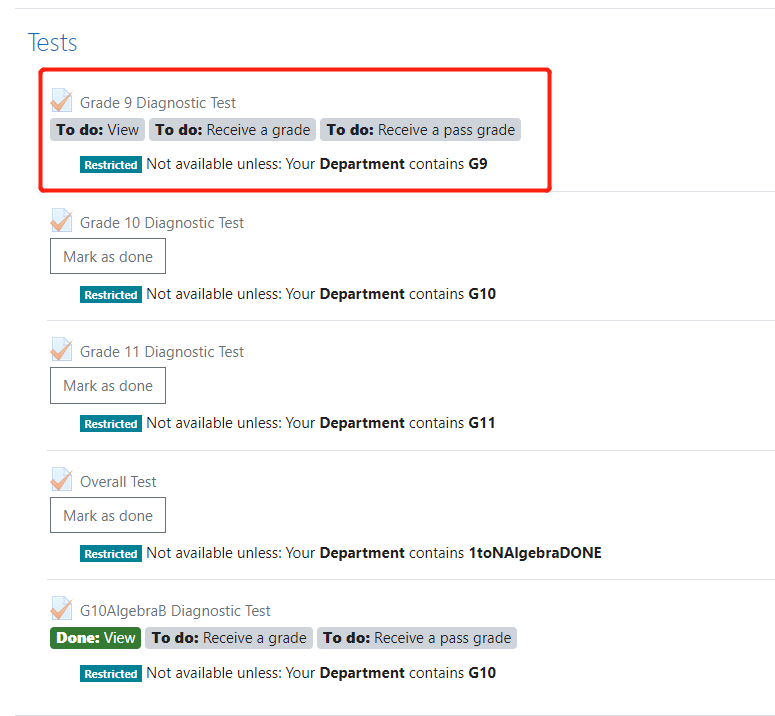
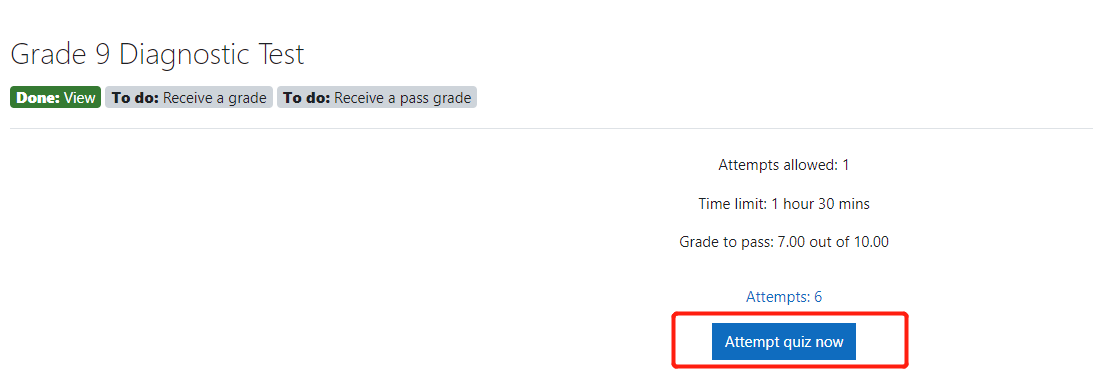
3.Please find the specific quiz you want to do then click the quiz link to open the quiz, then click “Attempt quiz now” button to start answer the questions。
Our system has complicated algebra functionality, please pay attention to the hint of the question before you input your answers.
1.登录Rootmaths.com。请输入你注册课程时使用的邮箱和密码,点击"LOG IN"登录到系统:
2.选择My Account->My VIP Courses,点击"Redirect To My Course Site:course.rootmaths.com"按钮一键跳转进入课程管理子站点:
重要提示:你也直接打开VIP课程网站登录链接course.rootmaths.com/login/index.php输入邮箱和密码直接登录
这里列出了你报名的所有课程,点击对应课程名称可以直接进入课程管理页面。
3.找到对应的练习,点击练习链接,进入后点击“Attempt quiz now”按钮按照系统提示答题即可。
因我们的答题系统可以检测复杂的代数表达式,请注意根据题目要求录入相应答案。
1.Login Rootmaths.com: Please input your email and password then click "LOG IN" to login into our website:
2.Then select My Account->My VIP Courses, click "Redirect To My Course Site:course.rootmaths.com" button to be redirected onto course.rootmaths.com in one click:
Here you will see all courses you enrolled, please click the specific course name to enter the management page.
You can also save your time by opening the course website: course.rootmaths.com/login/index.php directly and then input your email and password:
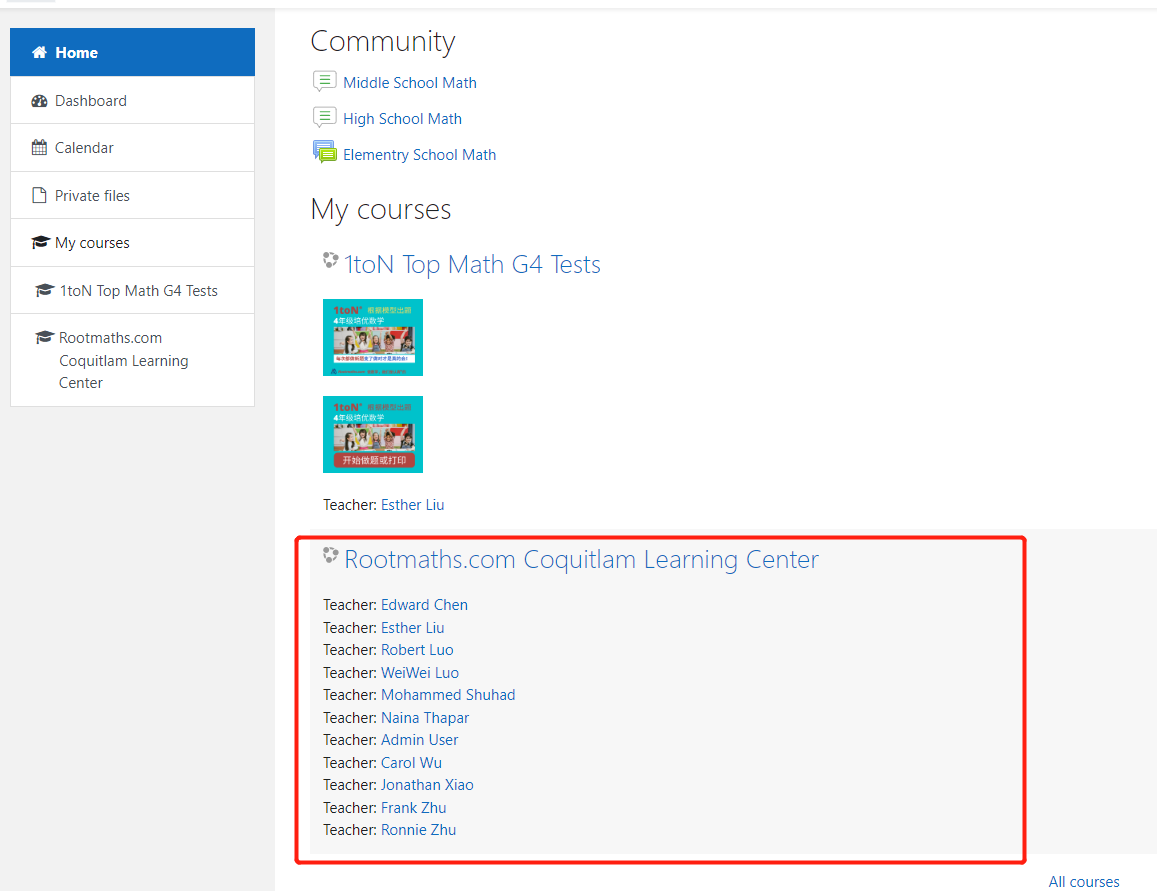
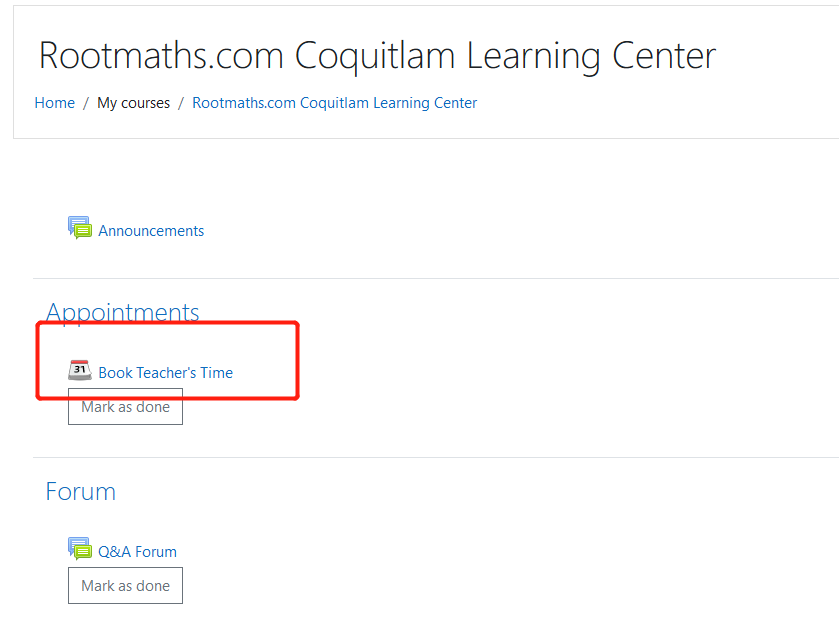
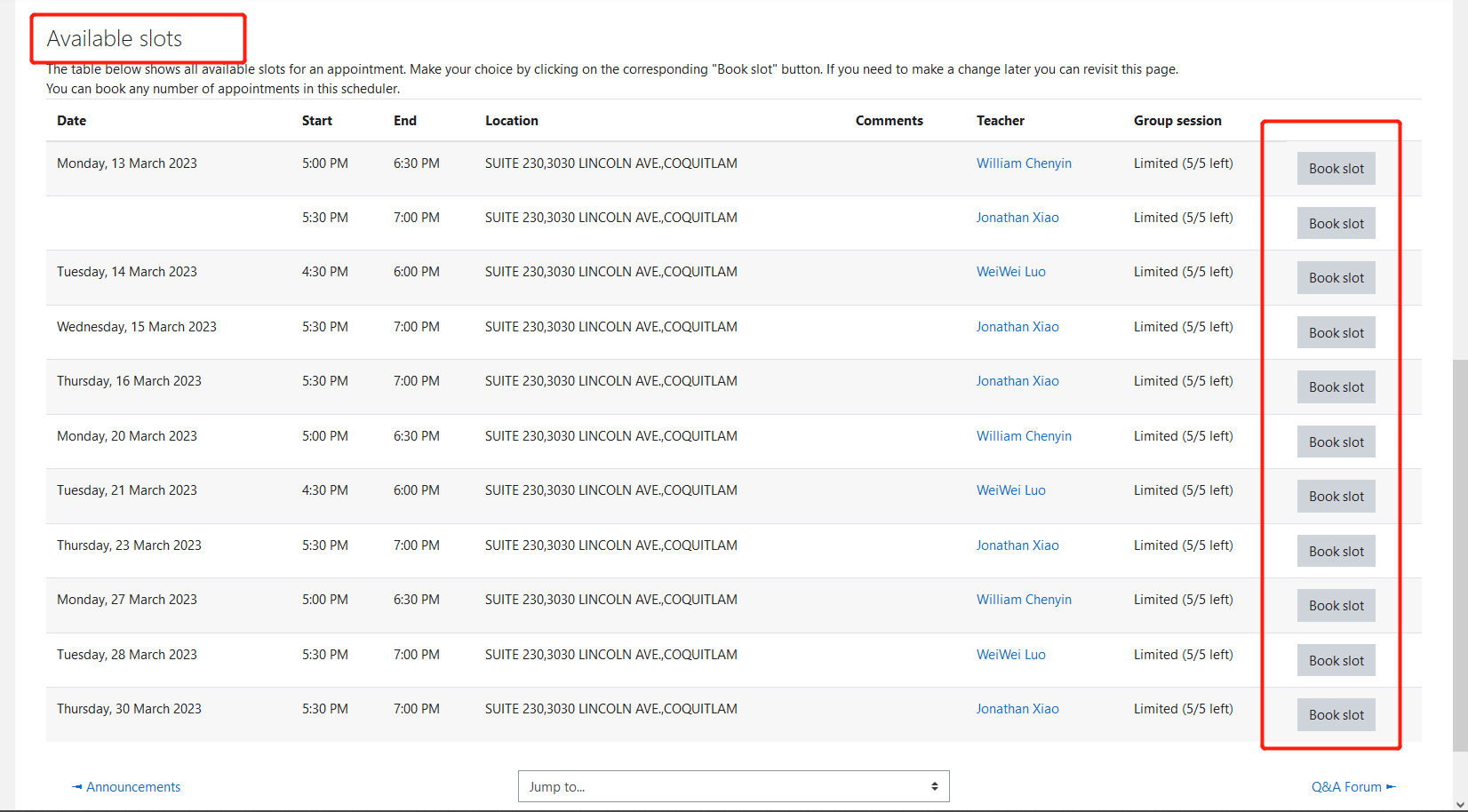
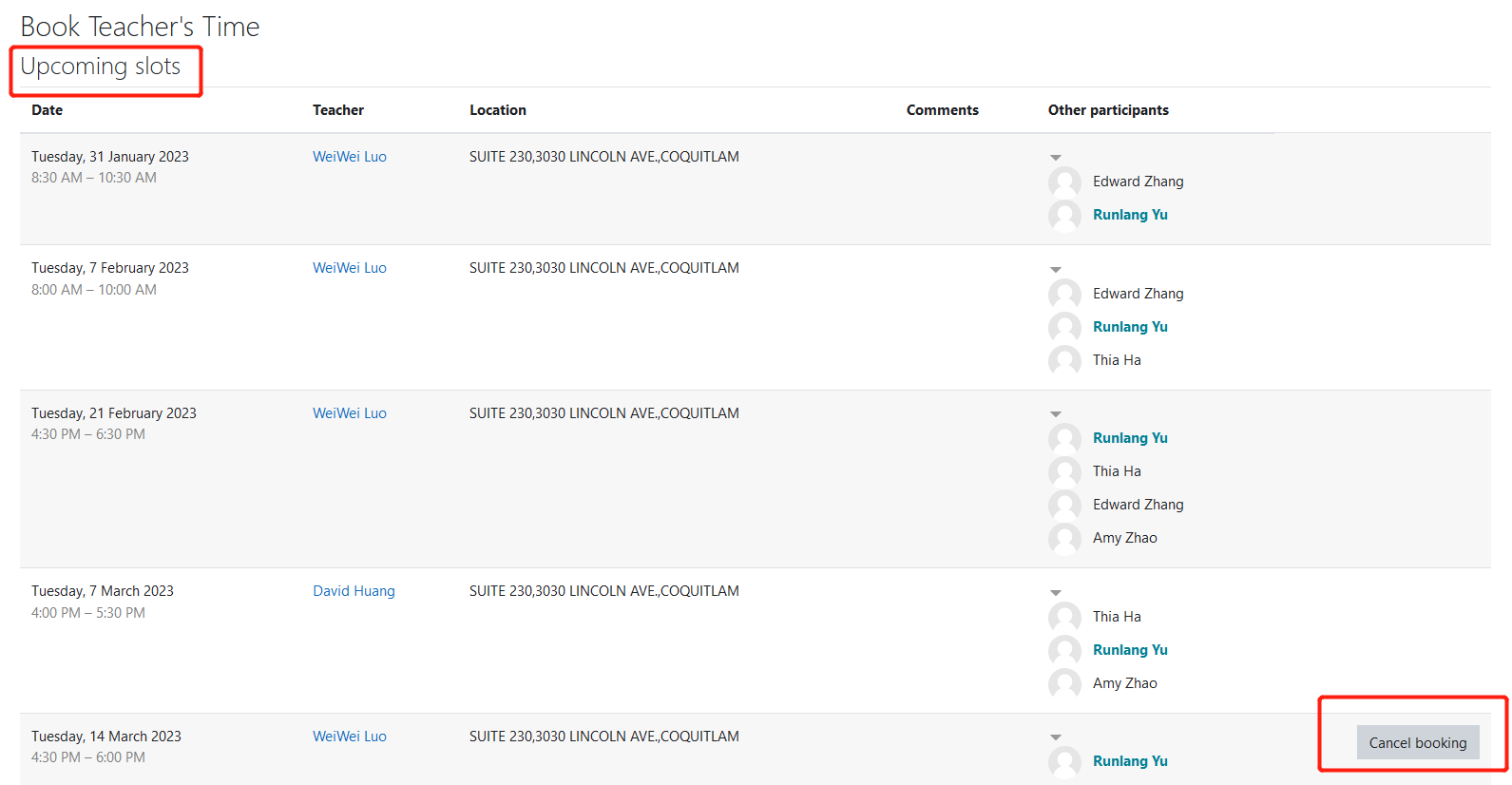
You will see the booking course with name of "Rootmaths.com Coquitlam Learning Center" after you logined in:
1.登录Rootmaths.com。请输入你注册课程时使用的邮箱和密码,点击"LOG IN"登录到系统:
2.选择My Account->My VIP Courses,点击"Redirect To My Course Site:course.rootmaths.com"按钮一键跳转进入课程管理子站点:
重要提示:你也直接打开VIP课程网站登录链接course.rootmaths.com/login/index.php输入邮箱和密码直接登录
登录后你会看到你报名的所有课程,点击名称为"Rootmaths.com Coquitlam Learning Center"的课程可以直接进入预定课程页面。